
Let’s face facts. MSI’s inclusion of their (then) all new Uni-Bracket based installation hardware is what helped persuade cynical enthusiasts and builders to give the P13 a whirl. A risk that when they did try it paid off in a big way… as the P13 offered a rather straightforward, bordering on easy, installation process that did everything the usual AIO suspects do and then exceeded expectations thanks to that EZ-Cap topper / fascia.

Yes. A well designed chunk of alloy and a simple piece of thermo-molded plastic really can make ordinary into the extraordinary… as for the first time a final build could be completely clean with nary a socket bolt or bracket to be seen. Instead all you would see is that gorgeous LCD screen and then the motherboard… with the socket’s white or black covering allowing the P13 to fully merge and become one with the motherboards black/white aesthetic.
The P22 continues this trend of easy yet expectation exceeding excellence and gives a little extra spin on things. Most of which work but with a quirk or two along the way.

So let’s backup and start from the beginning. Just as with the fans, the top ‘Uni” bracket comes factory mounted to the block for you. In fact if you look at the bottom of the block all you will see is plastic and copper with narry a bolt/screw hole to get filled up with gunk.

So to get the party started you either install the back bracket (if one is using Team Red) or yeet the AMD top mounts.

Then regardless of which flavor of socket you are rocking you install the four double ended retaining bolts to secure the backplate in position and allow the waterblock to be mounted to the CPU socket.

Since these four double ended bolts are different for AM5 and LGA1851 systems MSI took the time to not only individually bag them but label them. Making even this step extremely novice friendly. So read the bags. Grab the right four. Mount them. Then you apply some of the included TIM, peel of the protective sticker on the base of the P22 and gently lay the block over the socket.

Which leads to the quirk. With AMD you must have the inlet/outlet ports facing down towards your video card. This ensures the baked-in offset… is offset in the right direction. In the right direction and optimized for cooling Ryzen 9000 CPUs. If you don’t do this and rather have them pointed up towards the top of your system the offset works against you and while the P22 will still work… it just will not work as well as it should.
For Team Blue / Intel you have more options and while MSI’s infographic once again tells you to have the ports pointed downwards… you want to rotate it so it covers the Intel hotspot offset more optimally with the inlet/outlet ports pointed towards the back of the case or the front of the case. Once again flexibility is the strong point of this unit and while not perfect MSI has not forgotten about Intel owners in their strive to court AMD owners.

With that quirk taken care of you then tighten down the four corner retaining nuts in a 1/3/2/4 pattern using one rotation per bolt method… just as you would on any CPU cooling solution.

You then gently emplace the EZCap to cover your work so far.

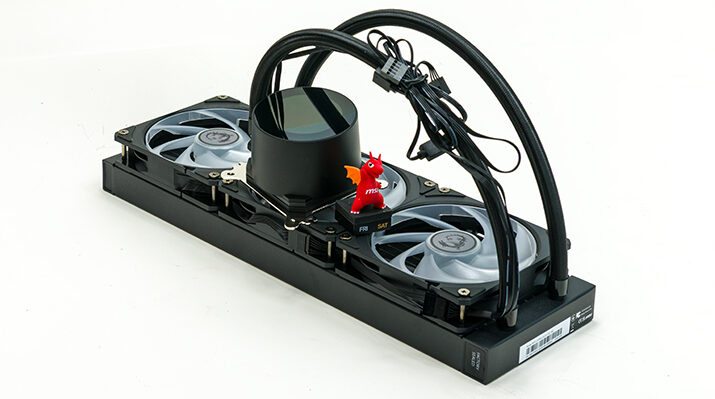
Then, since the fans are already pre-mounted and tidied up for you all you have to do is install the rad. With long (~390mm) tubing you do have options. Front of the case, side of the case, or top of the case. It all should work in the vast majority of cases.

Given the moderate thickness (total of ~55.7mm) with the rather svelte width (barely 120mm) this rad is extremely easy to work with… and when the highly flexible tubing is taken into account this is an AIO rad that is easier to work with than many 280-class options.

Either way, once the rad is firmly install, the only thing left is to plug in in the various cables. The 4-pin for the pump. The 4-pin for the fan. The ARGB v2 header for the fans rizz, and the USB 2.0 header so that you can control the P22. Since MSI made sure to include generous portions for all cables (upwards of 60cm) you can get rather creative with tidying. More importantly you don’t have to worry about where your USB 2.0 headers are located as the cable is long enough to reach – even if its all the way down at the bottom of the board and you weave the cable around the slots to hide it.

Overall one quirk really is not bad at all. Certainly above average and certainly firmly in the excellent end of the spectrum. Put another way this is a rather novice friendly and is as user-friendly as it is advanced. A combination which we wish more 360-class options offered. Color us highly, highly impressed with this nearly-no-drama-lama model!