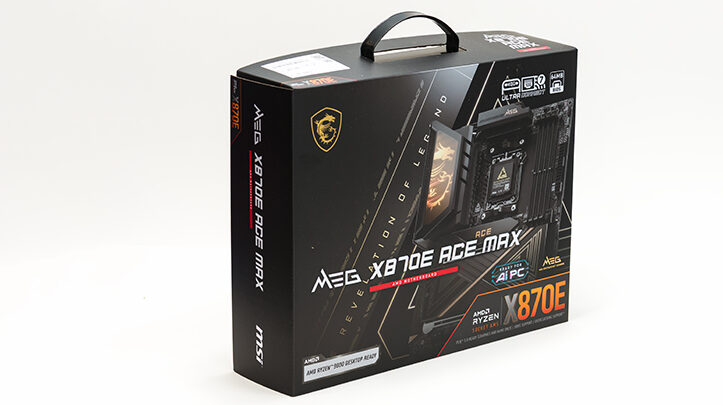

If one was to consider the ASUS ROG X870E Dark Hero the… essence of “PC Gaming Enthusiast” oriented motherboards and the ASUS ProArt X870E Creator WiFi the pure, distilled embodiment of professionalism, the MSI MEG X870E ACE MAX would sit comfortably somewhere in the middle. Which usually is a fancy way of saying it is a compromise design that doesn’t do either all that well. However, the Ace Max is not a “mullet” motherboard that tries (and hilariously fails) to simultaneously tread both paths, nor is it some grotesque, mutated admixture that ends up offending both camps. Instead, the ACE MAX brings enough “wow” factor to satisfy PC‑gaming enthusiasts who love open concept builds that show off every component, while at the same time not offending the conservative sensibilities of professionals who quietly hate the idea of a motherboard that yells at you from clear across the room.

For example, with its multiple RGB logos, text, and iconography it can be very flamboyant. Not to the same garish “Liberace Live In Vegas” extremes the Dark Hero can go, but a lot more than one might think. Conversely, if you look at RGB and go “I beg your finest f… farthing pardon?! Turn that shi… err… eyesore… OFF. Right. Now.” – but still want it to have a bit of personality? That is the X870E ACE MAX.
With some… egregious exceptions MSI has steadily refined this “Old Money Luxury” aesthetic for quite some time, and it is fascinating to watch it morph from “aggressive minimalism” to “stealth luxury” and now into something that would appeal to buyers who demand their equipment be peak quality but are revolted by the very idea of braggadocio. Speaking from now over four decades of experience, it is a hellalot easier to work with this Middle Path aesthetic than either extreme. One requires the removal and negation of features that were actually paid for; the other demands additional add‑ons (like RGB strips) just to make the client happy. The ACE MAX? Flip off the LEDs in the BIOS, and conservatives will be happy. Conversely, set up a custom light show in the MSI software, maybe add in an RGB strip or three, and even the most angsty‑tween‑with‑money‑to‑burn will be happy. All from one board. Forget about being lower cost to the RoGs; making a builder’s life easier while also reducing logistic headaches? Now that is truly impressive.
Make no mistake, this is not an elitist‑snob motherboard. Yes, it is tightly focused on what it wants to convey, but a lot of this “easy to work with” vibe is also tailor‑made for novices trying to finish their first build. That too is the sign of a well‑designed motherboard… as any engineer can (re)create a modern‑day DFI abomination, but there is a very good reason DFI are DOA (in the consumer marketplace), and why they were sometimes called “DFI: Definitely not for First‑time Installers” or, after dealing with their RTFM mentality, “DFI: Designed by Fu… Insufferables.” MSI was around back then, and they obviously do not want to go the Abit and DFI route.

For example, we love the VRM heatsinks MSI has opted for with the new ACE MAX. This dual‑tower, dual‑heatpipe cooling solution is both practical and pleasing. Tipping the scales at a chunky 1lb 1oz, this is a large heatsink meant for serious cooling. However, unlike the Carbon and other (extremely good for their class) mid‑range motherboards, this one is not a solid‑chunk design. Rather, the secondary VRM heatsink is a folded‑fin design, which both significantly increases cooling potential (especially if you are using a top‑of‑the‑case AIO cooler) and surface area. The large “main” heatsink may not be a folded‑fin‑based unit, but it too has numerous fins CNC‑carved into it, resulting in a cooling solution that can easily shrug off hundreds of watts of heat. That makes it tailor‑made for handling Ryzen 9‑class CPUs now, and in the future – especially with rumors of massive core‑count increases coming down the pike, along with an equally large TDP bump to handle all those extra cores.

On the aesthetics side, MSI has yet again knocked it out of the park via a large “hidden” dragon logo combined with a mirror‑metallic surface covering the entirety of the rear I/O portion of the VRM heatsink. That means for “stealth” builds one can leave the logo off and get a very clean and professional final look. Conversely, the 16.8M RGB‑capable LEDs back‑lighting that hidden dragon can make for a rather aggressive look – especially when paired with the rest of the system’s RGBs – all of which can be controlled via a single piece of MSI software.

Which neatly segues into the main PCIe 5.0 M.2 heatsink. As with many of the mainstream MSI models, the ACE MAX’s primary M.2 heatsink comes with the same mirror‑like fascia partially covering the ~3oz aluminum alloy sink.
It too hides a bunch of RGB LEDs that, when activated, illuminate the large “ACE” model identification. Once again, allowing both conservative and flashy builds to be served via one motherboard. Not two.

Interestingly enough, the 3‑way M.2 heatsink does not get the RGB treatment, nor does it receive that “mirror” effect. Instead, MSI has opted for a more classic gold and silver accent on this beefy heatsink. Put another way, this is basically the same M.2 plus Southbridge heatsink as found on the Carbon WiFi Max, just with different “paint” applied to the top of the aluminum alloy. On one hand, this is disappointing; this is a much more expensive motherboard, and while it can be overlooked on the mid‑range models, the fact of the matter is that for a true, fully immersive RGB experience, it should have been upgraded to include RGB lighting.

On the other hand, this area will almost always be covered by a typical 2.5‑slot (or larger) video card, meaning most of the glow and show would be hidden anyway. So an increase in MSRP would be mostly for the benefit of marketing and not real‑world users. As such, it is not a deal‑breaker, and we can understand why the design team did what they did… and we, too, would have rounded that corner if it meant undercutting the competition by over a hundred Canadian dollars while also being able to offer even more features than the competition does. You may feel differently… but we doubt many will.

No matter how you feel about the “missing” RGBs on the lower heatsink, no one will doubt the light‑show capabilities of this motherboard. This board comes with a grand total of one Gen 1 RGB and three Gen 2 ARGB headers, plus a “JAF_2” header that combines the abilities of an RGB header with that of a fan header, allowing one to plug their fancy RGB fan’s two cables into one port. Of course, to use this special header, one must first use the included (sadly… but obviously proprietary) adapter cable and then connect the two cables to it. But since it is a flat ribbon cable, it can easily be tucked behind the board, helping to keep a “clean” look to your final build.
Before moving on, and for those who used earlier‑generation MSI boards with an “EZ Conn” / JAF header, you will be pleasantly surprised to know that this header is not just Gen 1 RGB compliant anymore; it can now power both Gen 1 and Gen 2 RGB‑enabled devices. That effectively turns this into a 3+2 or 4+1 RGB‑header board – a nice little flourish and flexibility enhancement if we do say so ourselves.

Also helping the final build cleanliness department is the fact that MSI has upgraded the location of the various RGB headers. Yes, most (3 of the 5) are still located at the bottom of the board, but one of the JARGB (Gen 2) headers is now pretty darn close to the CPU fan headers. That makes it easy to pull off custom light shows on, say, an Arctic Liquid Freezer III that comes with A‑RGB‑enabled fans.

Better still, the JAF header is no longer just an afterthought like it was on earlier boards. So instead of being placed higgledy‑piggledy, it now gets some love and is centrally located on the edge of the board – right next to the ATX 24‑pin power connector.

This location may not be “perfect” for all scenarios, but it is flexible enough to now power front AIO fans, top‑mounted AIO fans, or even, in a pinch, side‑mounted AIO fans (think Corsair 7000D as a point of reference). Now that is an impressive list of sensibly located ARGB headers that will make life eons easier for even the novice, first‑time builder. Color us impressed with how well executed this theme of “premium but practical” was that the ACE MAX design team obviously was going for.

Further helping to reinforce this theme of premium but practicality is the fact that MSI has kept their fan‑favorite additions – features that add both a dash of elegance to the board and increase the ease of use of said features. For example, both “x16” PCIe slots get the full “PCI‑E Steel Armor” treatment, while the tiny x4 does not. This is actually for a reason. First, that bottom‑most PCIe slot is only an x4 slot… and we personally dislike x16‑form‑factor slots that are mechanically only x4 (or worse, x1).

Furthermore, as all three PCIe slots are connected directly to the CPU and not the chipset, there is a bit of a downside to using this slot. Specifically, MSI either had to include a bifurcation chip or take 4 PCIe lanes from somewhere else. We dislike it when companies include MSRP‑inflating chips, since they increase latency and cause random squirreliness issues to crop up. So we do like the fact that it is not just a case of either/or – either you use this x4 slot or you use the M.2_1 slot. Instead, the default is to turn both into “x2” versions, with the PCIe 5.0 slot now limited to two lanes and the M.2 being a PCIe 5.0 x2 port. That should help novices from having to troubleshoot why their PCIe card and/or M.2 drive is not showing up.

Of course, if you dislike this compromise (and it is a compromise), you can choose to disable one or the other in the BIOS, giving you a lot more freedom than how most manufacturers do things. Color us impressed… even if it does mess with the most likely to be used M.2 port – the topmost one with its own heatsink.

This deeper‑than‑usual reasoning also applies to the DIMMs. Yes, they do not get the Steel Armor treatment… but it would have done nothing to help improve DDR5 wonkiness. Bluntly stated, such treatment is just for aesthetics, and if a set of RAM is not going to work at its rated speeds, a bit of EMI shielding probably would not have helped. All it would have done is give novices a false sense of security and needlessly increased the asking price.

Also in the “practical but oh so premium” camp is the top PCIe slot, which now not only gets the “EZ” treatment but is actually the best implementation of an “easy” PCIe slot we have seen to date. Typically, these “easy” latches are nothing but a spring‑loaded latch connected to a long “bar” that the button moves. Want to remove a video card? Press, hold, and pull the GPU. When done, release the button and the latch springs closed. Want to install one? Same idea… that takes away one hand from the serious business of not damaging delicate PCIe pathways on an expensive GPU. Furthermore, if you are not perfect in your alignment and the GPU is not fully seated, that latch can slam into the GPU’s PCIe tongue and damage it… or worse, appear to close and then take you ages to track down that intermittent gremlin.

With MSI’s implementation, it is like a pen that locks itself in at a given setting. So the methodology is different and simpler. Push the button to make sure it is in the locked position. Install the card with two hands. To uninstall, push the button and then remove the card with both hands. This is not only safer, but because the latch is still spring‑loaded, you can hear an audible “click” when the card first pushes the latch out of the way and then springs back into the locked position when your card is fully seated. Thus making it the best configuration to date… and it simply smokes the new “tilt to un/lock” design Asus has gone to (and in a couple of years, some poor schmoe is going to kill the socket and maybe the card by forgetting about the whole tilt‑to‑remove nonsense).

Now, with all that said, it still is not perfect… and the same complaints we had with the Carbon have all been carried over. Namely, it needs to be even more user‑friendly. Yes, it gives audible and tactile feedback. Yes, they include a small window to show the status of the PCIe latch. Neither, however, are they all that helpful for novices. First, that window is too small to see the locked and unlocked icons from any worthwhile distance. It needs to be changed to a bigger window that changes to a solid RED or WHITE to easily indicate the status of the locking mechanism.

Mix in the fact that the button itself is a solid color and only moves by about ~2.5mm… and a lot of people (even ourselves, who actually read the manual) will be playing a guessing game of “is it or is it not” when this board is installed in a working system with a big honking GPU installed. To be blunt, MSI should not only increase the size and color of the window but make the button itself a two‑tone affair: see a white ring on the button? It’s unlocked. Can’t see the ring? It’s in the locked position.
Also in the “sure to be confusing” end of the spectrum is the fact that you install the card while the latch is in the locked position, not the unlocked position, like one might logically assume. Once again: press to lock and install; press to unlock for uninstall. Not press to unlock, install, press again to lock, as some would logically conclude. So yes, we fully expect a lot of irate first‑time users whose card is not fully seated because they “forgot” that step. We understand the reasoning behind this quirk, as it is why the top of the PCIe latch is curved metal and how MSI can give you that audible “click” feedback… but it is a tiny bit counter‑intuitive.
Make no mistake. This is the easiest, the safest, and the most robust “easy” configuration we have seen to date. It just happens to be a first try that needs a couple of rough edges rounded off in future iterations. At which point it will go from being merely best‑in‑class to the gold standard against which all others must be weighed – and probably found wanting.

That, however, is nitpicking. This is an incredibly good‑looking motherboard that exudes a level of premiumness that even the Dark Hero cannot quite match. Bluntly stated, this is a reasonably priced high‑end board that can easily replace multiple motherboards… and where you would typically carry an ultra‑conservative “ProArt”‑type board for business‑oriented “belt and suspenders” clients and a second “PC Gaming Enthusiast”‑looking one for more extroverted clients, the ACE MAX can cover off both. Cover off both, and yet not feel like it is a compromise to either client’s priorities… or to us, the builders.
Color us highly impressed.