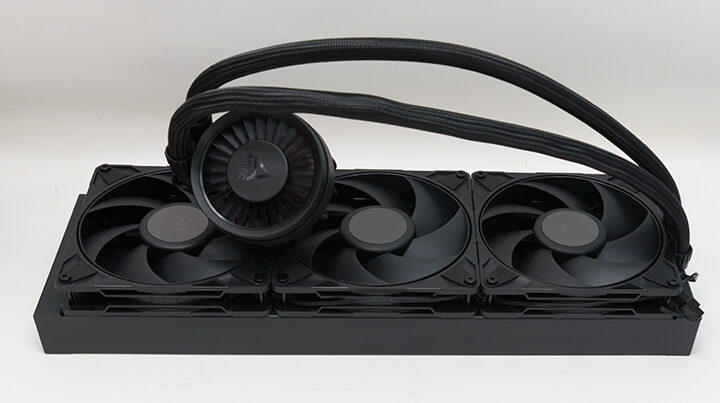

Let us be clear. Let us be precise. Even if you have installed countless 280s and even 360-class AIOs, if you have never worked with a 3x140mm radiator-based AIO, you need to treat the installation process like it was your very first time. You need to go slow. You need to plan out every step in advance. You need to have patience… and you probably are going to need a third helping hand during the process. It can (relatively) easily be done yourself, but things go better if you overprepare and overplan.

We make mention of all this as we judge all AIOs by their class standards… not the overall AIO marketplace. So if we think a 420 is ‘easy,’ that is actually worse than an overly difficult 240. As such, when we say that Arctic has made massive improvements and massive strides in the ease of use department, one must temper their expectations. It still is a 420-class AIO and demands your respect. Disrespect itt and it will break your motherboard… or at least bruise your ego.
So what has changed from last year’s non-Pro model? Firstly, not much on the AMD side. If you are using AMD, you are going to have a ton of issues. Up to and including the absolute violation of the top-most PCIe “no-go zone,” which means compromises in your M.2 choices and even the narrowing of potential motherboard options come along for the ride like oversized luggage. This was the main problem we had with the original ALF 3, and it is still in full effect for the ALF 3 Pro series. This is disappointing as one will have to choose between beefy CPU cooling, beefy PCIe 5.0 M.2 cooling, or using fewer PCIe 5.0 drives on their fancy new AMD rig.
On the positive side, the amount of love Arctic has shown Intel is blush-worthy… as they have pretty much fixed the M.2 heatsink problem. To be fair, this is most likely a happy coincidence as Intel did shift the hot zone of their chiplet CPUs way, way North compared to previous models. This, in turn, meant that the ALF 3’s block had to be shifted North. How much North? Enough that on every Intel-based motherboard we had here on hand, it no longer had an M.2 problem. With everything from Gigabyte Z690s to MSI Z890s being able to mount both this AIO cooling solution and the beefiest of beefy M.2 cooling solutions.

Instead of going into greater detail… here is a picture of the original ALF 3’s “contact frame” being used on the ALF 3 Pro. Notice the M.2 is not going to work.

Now with the new offset mount. Sure, it’s still a smidgen too close for true comfort, but a couple millimeters of clearance… is a couple millimeters of clearance.
This is a game-changer for the ALF 3 Pro series as it allows the Pro to easily be the best option going for Intel systems right now… or at least new Intel systems. We say this as older 14 (and earlier) generation CPUs don’t get a proper offset, as only the Core 200 chiplet offset frame is included. Of course, one can phone them up and get the older frame and its older offset for free… but then you are back to having the same issues on M.2 vs CPU cooling that AMD users will be facing.
So let’s focus on the process.

First, go spend the coin on a cheap electric torque meter. A low Newton Meter, one to be precise. One that can go from say 0.5(or even lower) to 1.0Nm (or higher). One that comes certified if you can. Hypothetically, you only need it for about ten minutes so you can “rent and return”… if you are a scum bag. But honestly, the screws that mount the block should also be torqued down, and with a digital torque meter, you know all are set to the same torque. Most don’t list anything beyond ‘finger tight’… and we were taught that finger tight is in the 1-2Nm range. So if they don’t say a specific number, we would use 1 to 2 Nm. If they do, use their recommendation (for example, Noctua typically states 0.6Nm). Typically, we tighten to 1Nm as smaller screws have low max torque, and 1Nm is usually under it and yet still more than enough for a piddly CPU cooler mount. In this case, Arctic doesn’t say, but since we have it set up for .88Nm, that’s what we would probably use.

Either way, that custom Intel ILM must be installed and torqued to 0.88Nm before you can continue the installation process. Which, quite honestly, means Arctic uses the older Intel torque spec for the “contact frame’s screws” (aka Independent Loading Mechanism or “ILM”) that you are first going to yank and yeet before installing this proper frame. The Intel spec was a nominal .9Nm with a maximum allowable 1.13 N · m (aka 8 to 10 inch pounds).

To help visualize just how little pressure this is and why you need a digital torque wrench for this, many ‘sealed for your safety’ plastic water bottle caps require about 1.1Nm (or about 10-inch-pounds in hamburger helper units) to crack open. It’s literally “finger tip pressure” level… if you are on the effeminate side of things, that is. Furthermore, to help visualize the allowable pressure variance, it’s about the same as the effort required to start turning a typical door handle knob… that has been well-lubed. So buy once, cry once.

Either way, place the shiny new contact frame with the triangle engraved in one corner over the silk-screened triangle on your motherboard. Screw one side down a smidgen, then the other. Then repeat until your torque driver’s screen starts showing the actual torque value. At which point, go to ~0.05NM (about half an inch pound) increments until it is at 0.88Nm. Stop. You have now successfully navigated the hardest part of the process.

This brings us to the next nifty “they were really thinking about ways to protect their buyers from themselves” feature. This contact frame is keyed, and the block will only fit in one way. With the inlet/outlet ports on the PCIe slot side of things. So if you are screwing and screwing and screwing… but it’s not actually mounting… check your orientation of both the block and that contact frame. You may have derped the orientation of the frame install, or you are trying to install the block backwards. Either is possible, neither is going to work, and it must be fixed before bodging a solution to the problem you created.
Beyond that, follow along the animated instructions, and you will quickly have the beefiest of beefy bois up and running in your newest system.

Overall, the ALF 3 Pro’s installation process is still best described as “quirky”… but we really, really like the improvements they have baked in. Now if they would only show AMD buyers the same level of love they have for Intel, and we would be able to consolidate all our future build’s AIO purchases down to the ALF 3 Pro and only the ALF 3 Pro series.